Recently, I wrote a blog on CONCAT string function in 2012 and there were couple of interesting questions about the CONCAT function. I shall answer those questions in this blog, as it would be better to answer with examples.
The first question we will look to answer is, Why should we I use CONCAT function when SQL Server can concatenate using +?
When CONCAT is used, all values passed into the function are implicitly converted to String values and then concatenated and NULL values are implicitly converted into am empty string. To better understand this, let us look at an example.
Use the following code to create a table, note that this is similar to the code used in the actual blog, except the values passed into Address1 in the first 2 rows is NULL.
CREATE TABLE [dbo].[Customer_Address_New](
 [CustomerID] [bigint] NULL,
 [Address1] [varchar](50) NULL,
 [Address2] [varchar](50) NULL,
 [ZipCode1] [char](5) NULL,
 [ZipCode2] [char](4) NULL
 )

INSERT INTO Customer_Address_New
VALUES
(1,NULL,'Moon Walk Drive', 24578,2881 ),
(2,NULL,'Roof Top Lane', 54856,5421 ),
(3,'#3','Full Thottle Blvd', 90425,5782 ),
(4,'#4','Drive Slow Road', 18854,6502 )
Once you inserted the data, run the following 2 statements to and look at the results
SELECT CustomerID, CONCAT(Address1,' ',Address2) AS Address,
CONCAT(ZipCode1,'-',ZipCode2) AS ZIP
FROM Customer_Address_New
SELECT CustomerID, Address1 + ' ' + Address2 AS Address,
ZipCode1 + '-' + ZipCode2 AS ZIP
FROM Customer_Address_New
The output will look like this..
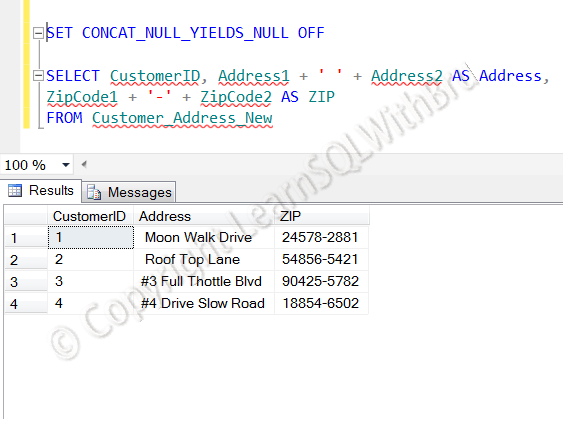
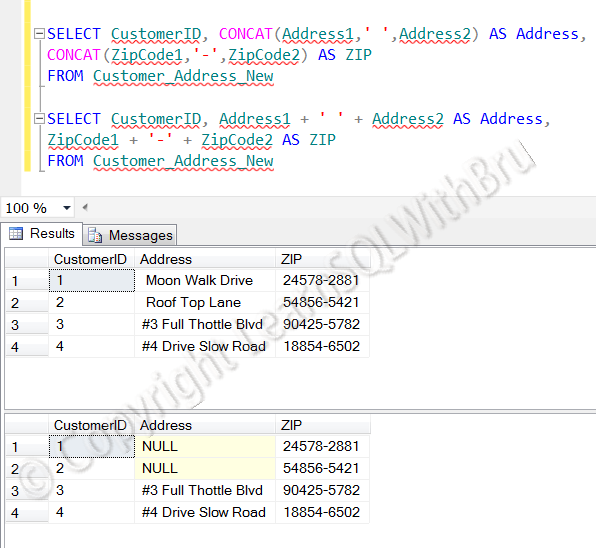 Note that the Address column is the result set from using +. By default SQL Server returns a NULL when you concatenate NULLs and Strings. You have to turn on the option SET CONCAT_NULL_YIELDS_NULL OFF and run the queries using + to get the desired results as shown below.
 Apart from the benefit of concatenating NULL values, CONCAT provides another benefit by implicitly converting every argument as string value, so it makes easy to get the output as expected without much fuss (I mean using CAST or CONVERT string functions). To look at this, let me give a very simple example. Run the following code.
DECLARE @DATE DATETIME, @STRINGDATE VARCHAR(20),@INTI INT

SET @DATE = GETDATE()
SET @INTI = 1234
SET @STRINGDATE = '10/10/2011'

SELECT  @INTI + ' ' +@DATE + ' ' +  @STRINGDATE

SELECT CONCAT (@INTI , ' ', @DATE , ' ', @STRINGDATE)
You will see the following output.
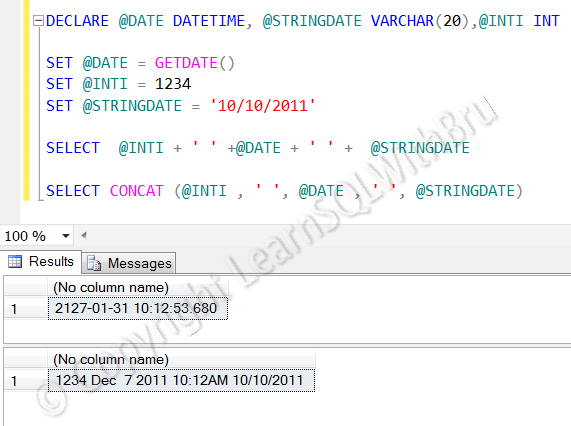 If you see the results, the output we got when concatenated using +, is not we were looking for, in order to get the output returned by CONCAT, we have to use CAST and Convert functions to first convert the integer value 1234 to a string and so on, which is out of topic for this blog post.
Finally, to answer one more question on performance benefit of CONCAT, I haven’t yet tested the performance benefits of using CONCAT in SQL Server 2012 over “+”, so I cannot comment on it..
Do you like this site? Like our FB page @ Facebook.com\LearnSQLWithBru so that, you know when there is a new blog post.
— Bru Medishetty